
How to Make an Alors on Danse AI Video
Learn how to make an Alors on Danse AI video with a two-character reference, a white-studio scene, a clean dance prompt, and a practical review checklist.
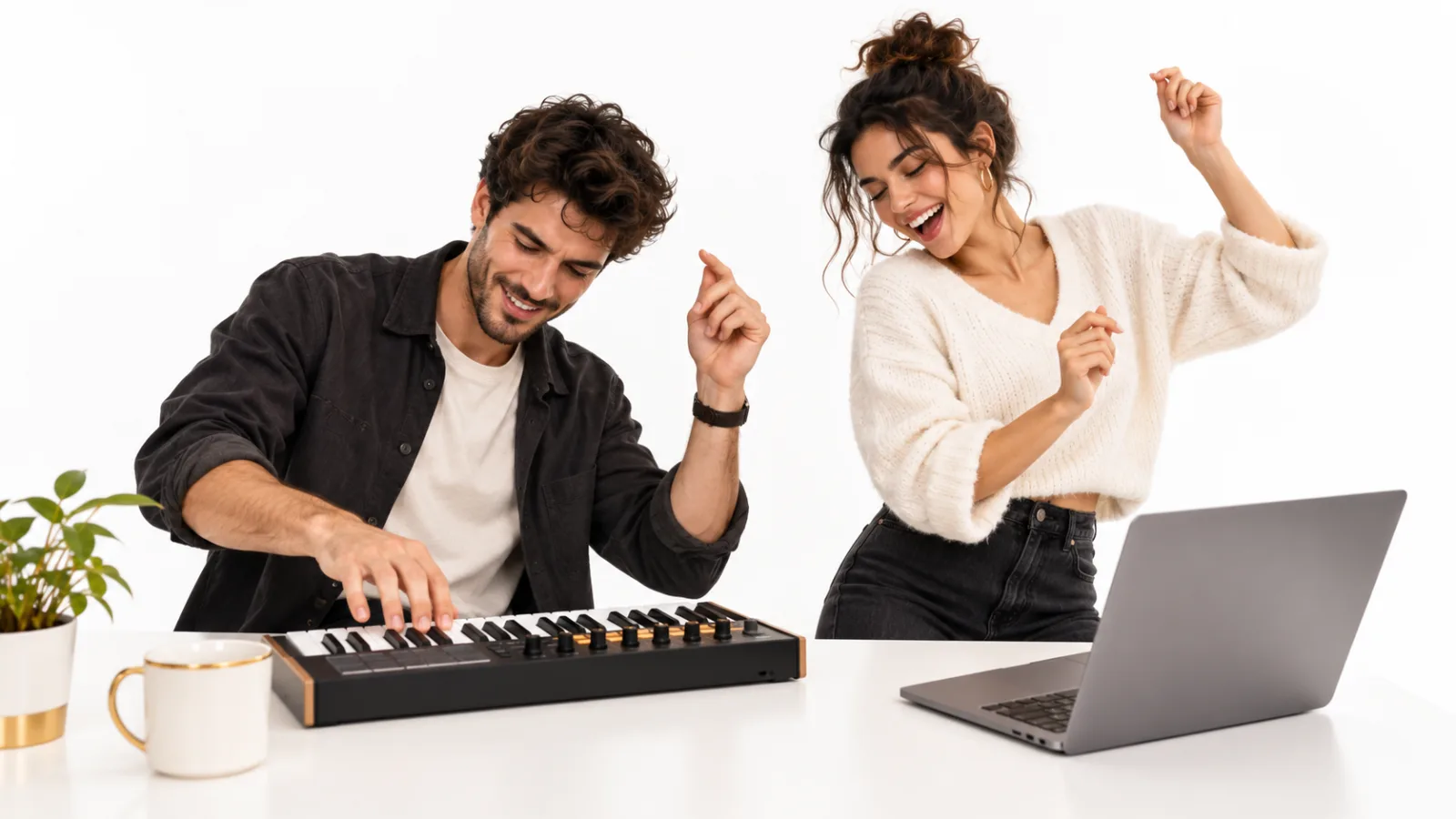
An Alors on Danse AI video is a short AI remix of a two-person studio scene associated with Stromae’s song and a comedy sketch featuring Jamel Debbouze. One performer is focused on a small keyboard; the second reacts beside a laptop. AI remixes keep that contrast and place new characters into the scene. The phrase describes a video format, not one universal app or AI model.
You can build an original version with a reference image and an image-to-video model. Decide the two roles, create a simple starting frame, prompt a few clear actions, then check the whole clip before you add sound. All visuals in this guide are original AI-generated illustrations. They are workflow examples, not customer generations or footage from the original sketch.
Start at the China Video AI homepage to explore the available tools, or open the image-to-video workspace with Seedance 2.5 selected.
What does “Alors on Danse AI” mean?
People use “Alors on Danse AI” for short AI videos that remix the recognizable keyboard-and-laptop scene. The AI part may involve replacing people in a clip, animating a new still, or building a fresh scene with similar blocking. Those are different workflows, even when the final videos share a visual joke.
The phrase can also lead to results about Stromae’s song itself. A useful prompt should describe the scene, not rely on the song title: two adult characters, a bright studio, a keyboard, a laptop, one focused performer and one energetic partner. That tells a general video model what to draw without asking it to reproduce a named artist, a recording, or a frame from someone else’s video.
Which original scene is the meme referencing?
The visual reference is commonly connected to “La leçon de Jamel à Stromae,” a comic performance in which Jamel Debbouze pretends to teach Stromae his own song. M6+ lists the performance under that title in its Marrakech du rire archive. A December 2010 Le Parisien review of Made in Jamel describes Stromae as learning to write a hit during the sketch. It is scripted comedy, not a documentary record of how the song was written.
The AI remix became more visible in early October 2026. Fast Company’s October 7 coverage describes a white-room clip with Sam Altman at a keyboard and computer while Dario Amodei gives beat advice, and connects it to the Stromae video. Reddit’s AI-video community has since shared fantasy-character versions, including a Gandalf-and-Frodo remix, with commenters pointing back to the Stromae and Jamel source. Those reports show examples and discussion; they do not establish the first AI remix or prove how widely every version has spread. The earliest creator remains unverified.
What makes the two-person format work?
The joke reads quickly because each person has a different job. The keyboard player stays comparatively serious. The other person reacts, points, leans in, or joins the movement. The desk and laptop anchor the frame, while a small dance gives it an ending. If the prompt turns this into a crowd scene or a roaming music video, the role contrast disappears.
Think of the scene as a short exchange instead of a dance routine. The viewer should understand who is playing, who is reacting, and what changes by the end. A simple video can feel more recognizable than a detailed one if its first frame and movement are easy to read on a phone.
Choose a workflow before writing the prompt
There is no single official “Alors on Danse AI generator.” Dedicated websites may package a fixed template. A general AI workflow gives you more control but asks you to plan the scene and motion yourself. China Video AI’s image-to-video workspace with Seedance 2.5 selected can animate a prepared starting frame. The video-to-video workspace is another option when your chosen model supports a source clip and your rights cover its use.
Use image-to-video when you want an original scene and can make a clear first frame. Use video-to-video only when the model accepts that input and you have the right to use the source footage. If the model supports several reference images, give each one a separate role. If it accepts only one start image, prepare a single frame with both people in position. For model-specific reference limits and control paths, see the Seedance 2.5 reference-to-video guide.
1. Assign the roles before generating
Write a one-line role map. It prevents the two characters from trading jobs halfway through the clip and keeps the humor legible.
Character A: at the keyboard, focused, small movements.
Character B: beside the laptop, expressive, reacts and leads the ending.
Shared beat: both join one simple dance in place.
Decide how much the second character moves. A point or a lean is easier to preserve than a long walk across the set. Choose a single payoff for the first attempt, such as both people doing a brief in-place step. Add a second action only after the first result holds the roles and faces.
Use your own likeness or images you have permission to use. If you are making a fictional version, create original characters rather than borrowing celebrity faces or characters from a film. A public figure appearing in a meme does not mean every viewer has permission to reuse that likeness or imply that the person participated.
2. Prepare references that survive motion
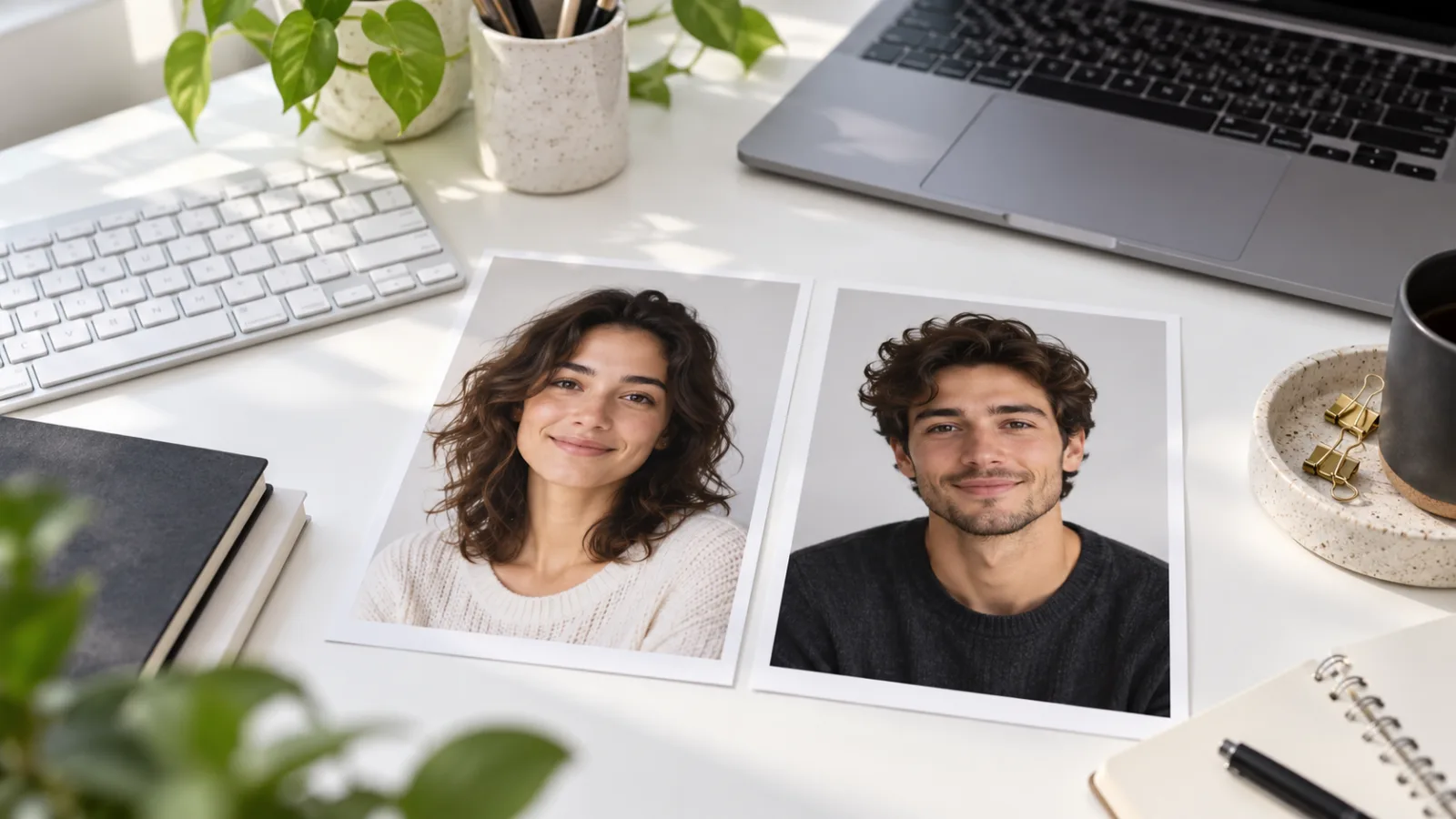
Choose a clear photo for each person if your workflow accepts multiple references. Face the camera, use even light, and keep the face large enough to remain visible after a vertical crop. For movement, include shoulders and arms; a close-up portrait gives the model little information about body position or sleeves. Avoid group photos, sunglasses, strong color casts, and hands covering the face.
Do not combine two faces into a collage unless the selected model expects a paired reference. Separate files make it easier to tell which person belongs at the keyboard and which one reacts. Keep the original images untouched, then make copies for cropping. This gives you a clean way to compare a tighter portrait with a wider reference if identity drifts.
When the model accepts one input frame, make a simple composite still with both characters already in their places. That frame should show the desk, keyboard, laptop, and enough open floor for the final step. It is usually easier to animate a stable composition than to ask a model to place two identities and invent the whole set at once.
3. Make one uncluttered studio keyframe
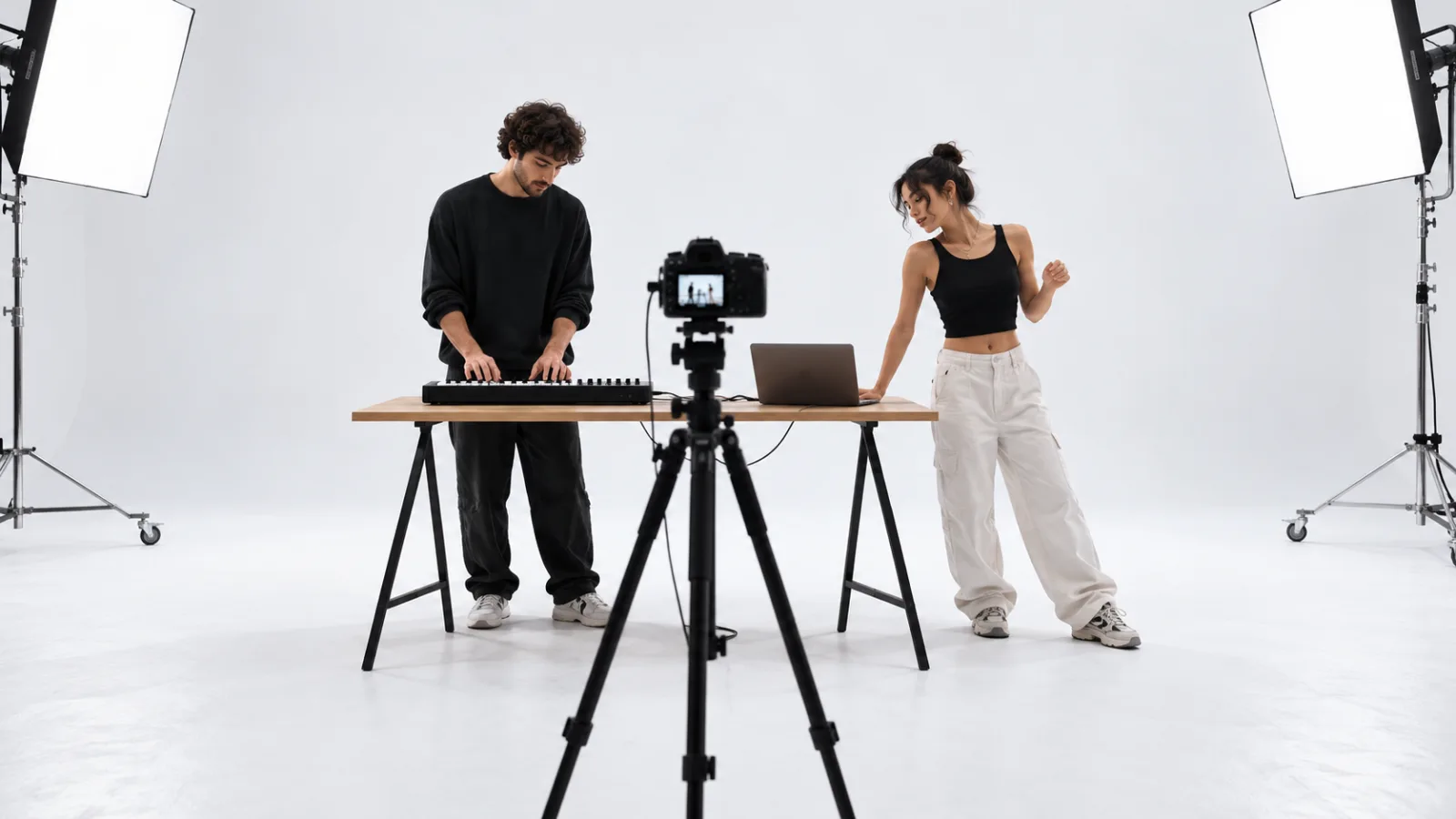
Start with a bright, plain room, a small table, a compact keyboard, and one open laptop. Place the keyboard player on one side and the reacting character beside the computer. Leave visible space around both people. A fixed wide shot gives the video model a stable layout to follow and leaves room for body movement.
If you need a starting still, use the text-to-image workspace to make an original set with fictional characters. Then bring the result into the image-to-video workflow. Avoid tiny text, extra screens, brand marks, patterned walls, several instruments, or overlapping hands. They compete with the roles and can turn small image errors into larger motion errors.
Try this image prompt as a starting point. Adapt it to the reference controls and style options offered by the model you select:
Create an original, realistic wide still in a bright white rehearsal studio.
Two fictional adult friends stand beside a small table. Character A plays a
compact keyboard next to one open laptop. Character B stands beside the laptop
and watches with playful confidence. Both full bodies are visible, separated
clearly, with open floor around their feet. Fixed eye-level camera, soft even
light, simple background, natural proportions, no text, no logos.
If your chosen model has a negative-prompt field, keep it short and use it for errors that matter to this frame. A negative prompt is optional; some interfaces do not expose one.
Avoid: extra people, duplicate faces, crowded props, cropped hands, hidden
keyboard, text, logos, dramatic camera angle, branded clothing.
4. Animate three readable beats
For the first generation, use three actions: establish the keyboard player, let the partner react, then finish with a small dance. Describe what stays fixed as carefully as what moves. Keep the camera from orbiting the table. Ask the model to preserve faces, hair, clothes, body proportions, and each person’s side of the frame.
Animate this starting frame as one short, continuous wide shot. Keep both
fictional adults, their outfits, the table, keyboard, laptop, lighting, and
background consistent. Character A taps a simple rhythm at the keyboard.
Character B points toward the laptop, reacts with a quick laugh, then both do
a small synchronized step in place. Keep hands readable and bodies in frame.
No scene changes, dialogue, lyrics, text, logos, or generated music.
Treat this as a prompt template, not a guarantee. Different models interpret “short” and action timing differently, and some provide separate duration or motion controls. Set those controls in the interface first. If the result rushes the ending, reduce the action count or shorten the prompt before increasing motion strength.
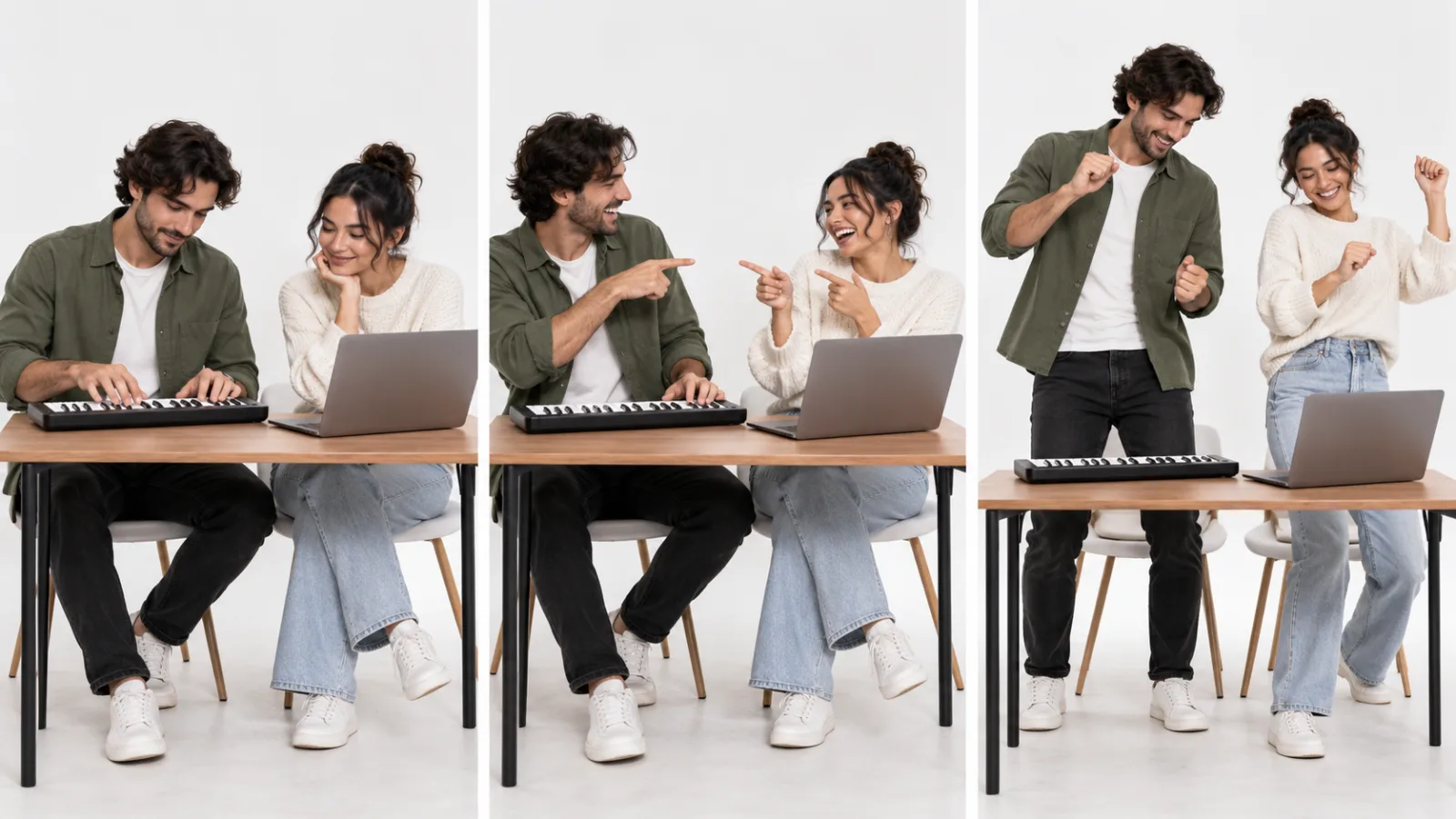
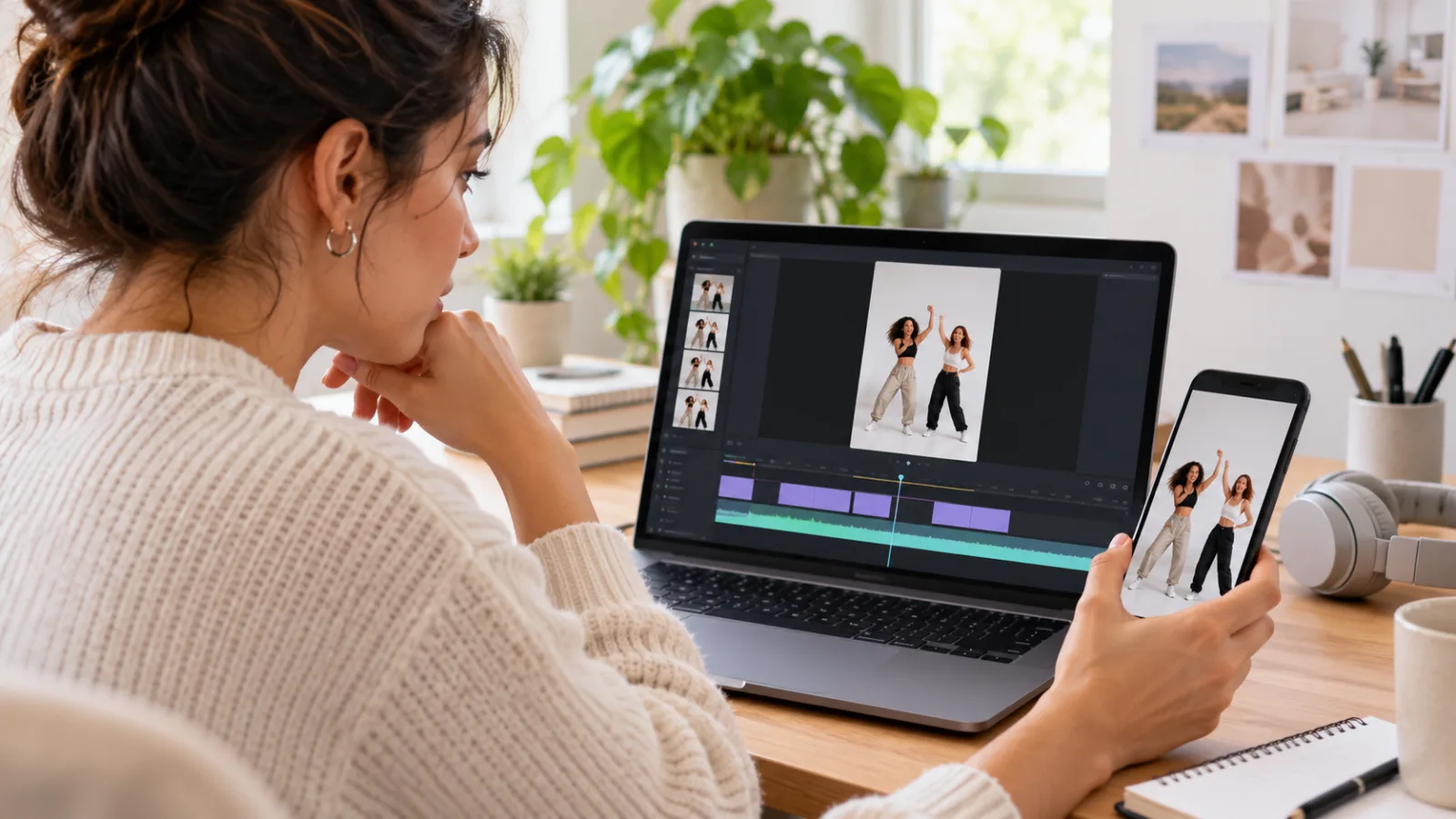
The sequence can be planned as three cards: a quiet setup, a clear reaction, and a shared ending. The AI video storyboard prompt guide explains how to assign each shot one job. This article’s illustrated workflow preview shows the reference, studio, framing, and review stages; it is a montage of original illustrations, not a sample AI generation.
5. Pick horizontal or vertical framing up front
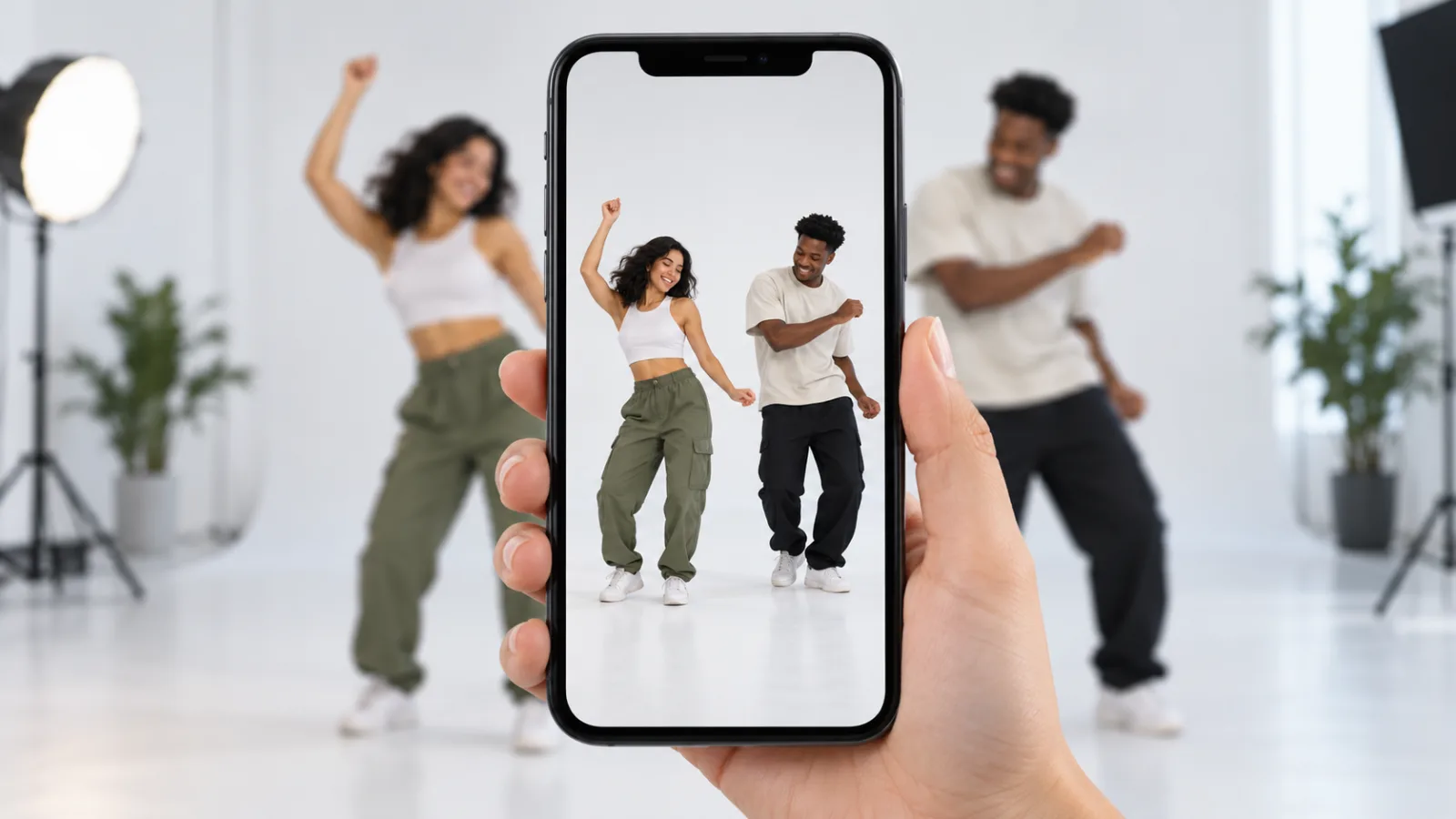
Choose the destination before generating. A horizontal frame gives the keyboard, laptop, and both characters more room side to side. Vertical works better in a phone feed but leaves less room for the table and feet. Do not stretch a horizontal result to fill a vertical canvas. Generate a vertical version when the model supports it, or make a careful crop that retains both people.
Keep faces and gestures away from the edge where captions and controls may appear. If the second person is pushed too far to one side, the crop can erase the reaction that makes the scene understandable. Preview the crop at phone width and check the top of each head, hands, keyboard, laptop, and feet before exporting.
Vertical composition: keep both performers and the complete table near the
center. Leave headroom and visible floor below their feet. Keep the keyboard,
laptop, and pointing gesture inside the middle safe area. Preserve the same
eye-level camera and distance. Do not crop or enlarge either character.
6. Review the result and make one change per retry
Watch the full clip once without pausing. Then inspect the opening, the action change, and the final frame. Check whether both faces stay recognizable, the roles remain consistent, the hands meet the keyboard naturally, and the laptop and table stay in place. Look for duplicated fingers, merging limbs, clothing changes, sudden camera moves, or a dance that begins before the scene is clear.
Use the first visible problem to pick one revision. Changing the prompt, reference photos, duration, and motion controls at once makes it hard to know what helped.
| What you see | Change this first | | --- | --- | | A face changes during the dance | Use a clearer reference and reduce head turns | | The keyboard or laptop bends | Lock the camera and reduce hand movement over the props | | The ending happens too soon | Remove one action and keep the setup longer | | One person vanishes in the phone crop | Center both people and leave more space at the sides | | The scene becomes a generic music video | Describe the desk, roles, reaction, shot, and short ending | | The people swap positions | State each person’s screen position in the first frame and motion prompt |
Revision 2: keep every approved detail from the previous prompt.
Keep the keyboard keys straight while Character A taps them.
Do not change the camera, clothing, lighting, set, or the other person's role.
Illustrated workflow preview
This short preview assembles the guide’s original AI-generated illustrations into a visual sequence. It is not a customer result or a reconstruction of the original Stromae and Jamel footage. Use it as a reminder of the production order: references, a clean set, a small number of actions, a safe crop, and a final review.
Add audio and publish with care
Generate the visual clip without assuming it will contain Stromae’s recording. If you want to use “Alors on danse” or another recognizable track, add it through the publishing platform’s music library and check the terms that apply to your account and use. Do not paste lyrics into the prompt or upload a commercial recording unless you have the rights to use it.
Use only images and likenesses you are allowed to use. A recognizable face can make a joke look like a real endorsement or event, so label synthetic content clearly where the platform asks for disclosure. Avoid putting false quotes or dialogue in the mouth of a real person. Review the exported clip on the destination platform before sharing it publicly.
Frequently asked questions
What is an Alors on Danse AI video?
It is an AI remix of a two-person studio scene associated with Stromae and Jamel Debbouze. The usual visual ingredients are a keyboard, laptop, contrasting roles, a playful reaction, and a short dance ending. Remixes may change the characters, camera, or timing.
How do I make an Alors on Danse AI video with my own characters?
Use images you own or have permission to use, create a clear studio keyframe, and animate a few actions in an image-to-video workflow. Keep the camera still, preserve each character’s role, and inspect the full result before adding audio.
Is Alors on Danse AI a specific app or model?
No. The phrase usually describes a family of remixes. Some sites wrap the format in a one-click template; a general AI workflow may use a starting image, several references, or video-to-video controls. Check the selected model’s actual input options before preparing files.
Does the AI video include Stromae’s song?
Not necessarily. A visual generation can be silent or use model-generated audio. If you want the original recording, add it through a licensed music library available for your publishing account and use.
Why does my result look like a generic dance video?
The title alone is ambiguous. Specify the white studio, table, mini keyboard, laptop, two roles, reaction, and short dance ending. A clear starting image also gives the model a more concrete composition to animate.
Can I use a celebrity or a character from a movie?
Use a likeness or character only when you have the necessary permission, and do not imply endorsement. Original fictional adults or consenting friends make a straightforward personal version easier to label accurately.
Try the workflow with your own starting frame
When your still is ready, open the China Video AI image-to-video workspace. If you are still shaping the opening and ending, use the AI video storyboard guide first. For multi-reference control, compare the Seedance 2.5 reference-to-video guide. The workflow starts with an original frame, not a copy of the old clip. You can also return to the China Video AI homepage to choose another tool.