
Blue Light Scan AI Video: How to Make It
Learn how to create a blue light scan AI video from one image with a controlled scan path, copy-ready prompts, continuity checks, and practical fixes.
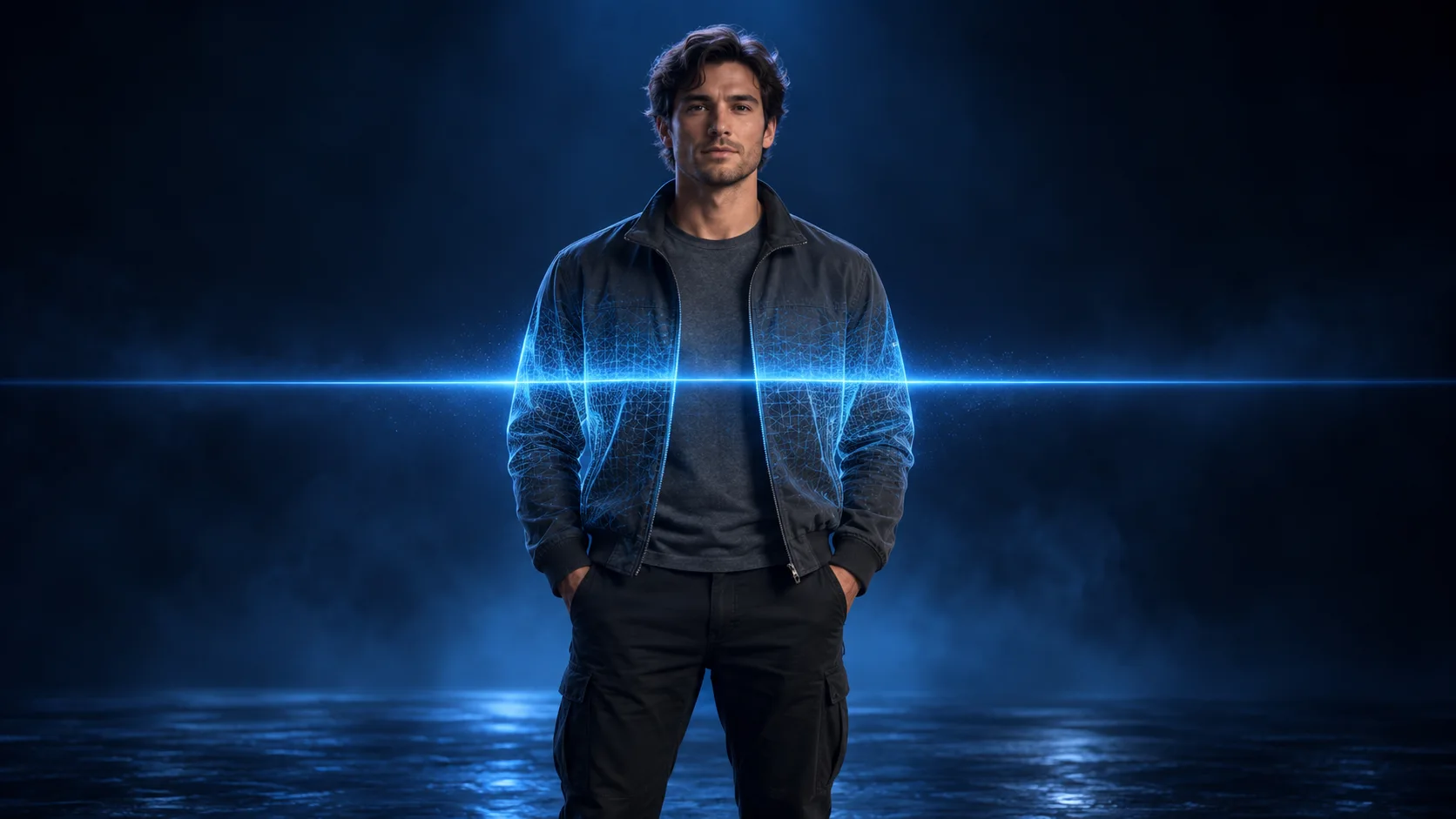
The phrase blue light scan can describe two different processes. In industrial measurement, blue structured light can be projected onto an object and analyzed to reconstruct its surface. In an AI video prompt, it describes a fictional reveal: a narrow cyan beam crosses an image, glowing contours appear for a moment, and the subject returns to normal color. This guide covers the AI video effect. The imagery comes from frame generation; it cannot reveal hidden information.
To make a blue light scan AI video from one image, start with a clear silhouette, keep the camera steady, specify one continuous scan direction, limit the glow to a visible outline or surface, and describe a clean return to the original look. Then review the subject's face, clothing, edges, crop, and final frame. If you want to try the workflow, open the China Video AI image-to-video workspace with Seedance 2.5 selected, or start at the China Video AI homepage.
The search phrase is ambiguous, so adding “AI video effect” to a prompt or page title helps make the creative intent clear. The same discipline helps with generation: tell the model which parts are light, which parts are motion, and which parts must stay unchanged. For multi-shot planning, continue with the AI video storyboard prompt guide. For another still-to-motion workflow, see how to make an AI product ad from one image.
What a Blue Light Scan Means in an AI Video
A blue light scan video is a short visual transformation built around a moving band of blue or cyan light. The beam gives the viewer a clear direction to follow. As it passes a person, animal, product, vehicle, or scene, a temporary contour effect can reveal the subject's outer shape. A brief return to natural color completes the reveal. A blue light scan AI video works best when each beat is easy to see.
This is a visual recipe. An image-to-video model synthesizes frames from your input and prompt. It does not calculate a person's dimensions, identify a face, inspect beneath clothing, or detect medical information. Use language such as “fictional sci-fi scan effect” when the result could resemble a real diagnostic, security, or biometric interface.
The effect is also different from a blue line that freezes or distorts parts of a live camera image. Here, the central idea is a scan pass followed by a contour reveal and a return. That sequence works with a single image because the line itself supplies the motion and the color change supplies the payoff.
What a Clean Blue Light Scan Video Looks Like
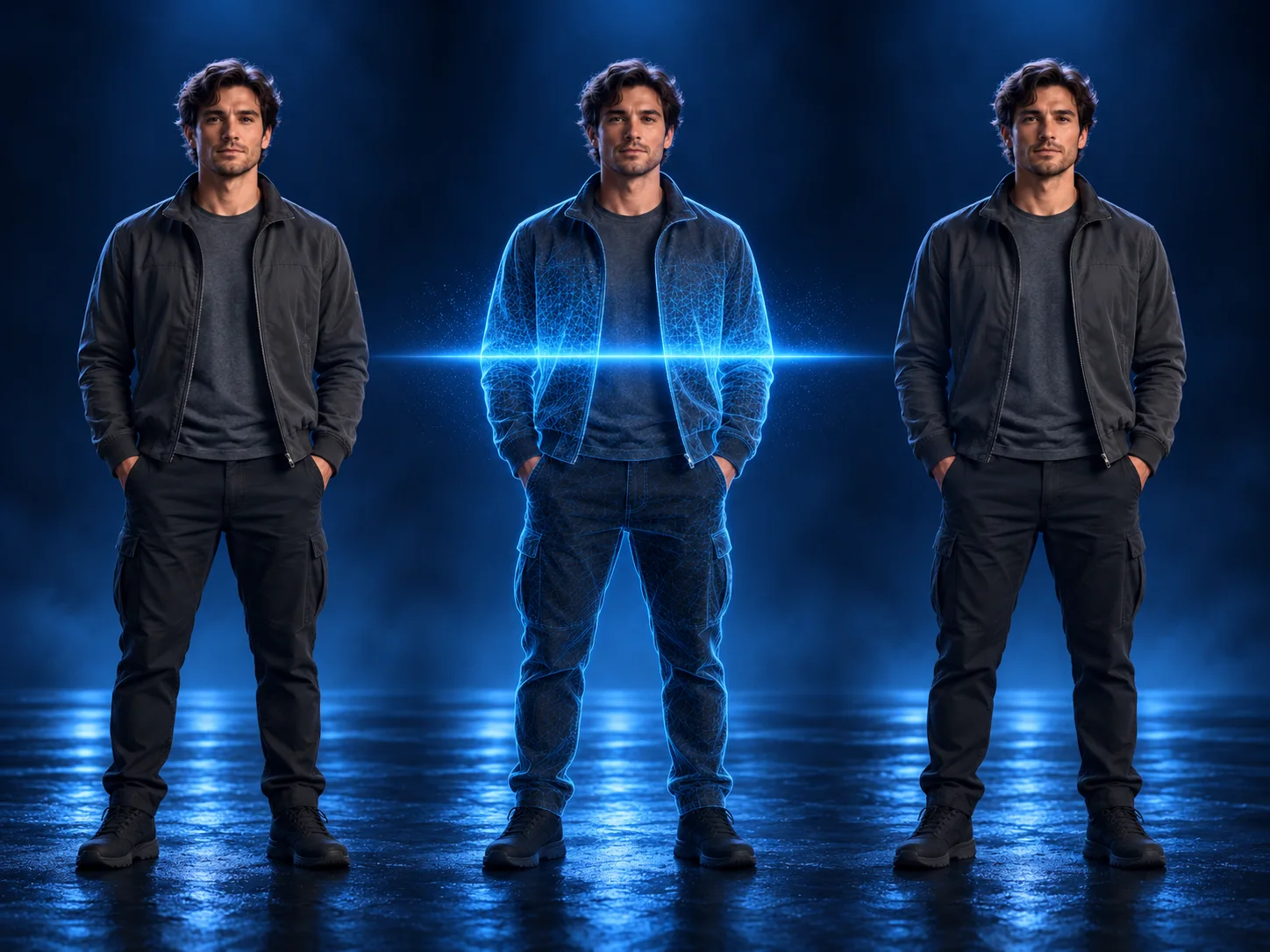
A readable result has three beats: the viewer first sees the unchanged subject; one scan line crosses the frame; then the subject settles back into its original appearance. The subject should remain recognizable through the middle beat. If the light, subject, camera, and background all change at once, it becomes harder to tell what the scan was meant to reveal.
The figure below is a visual storyboard, not a model output. It shows the before, scan, and return states in one composition. Use it as a review model: the line provides direction, the glow stays close to the subject, and the last frame gives the original colors room to read.
An original six-second motion graphic below moves a cyan line over an AI-generated still to illustrate scan direction and pacing. It is an explanatory animation, not a video-generation result and not a real scan.
Choose a Source Image That Holds Its Shape
The source image determines how much visual information the model has to preserve. Pick one main subject with a visible outline, useful contrast, and enough empty space around it for the light to travel. A front-facing or three-quarter pose is usually easier to read than a subject hidden behind props or cropped at every edge.
Even lighting helps the model distinguish the subject from the background. It does not need to be a black studio: a simple wall, uncluttered room, or open night scene can work if the subject remains easy to separate. Avoid bright glare over the face, hands, or key product details. A line that crosses reflective noise can appear broken or doubled.
For a person, choose a fully clothed photo with a natural pose and clear clothing edges. For a product, leave space around the silhouette and keep labels and small details legible in the original image. For a pet, use a calm image that shows the animal's full outline. Start from a picture you own or have permission to animate.
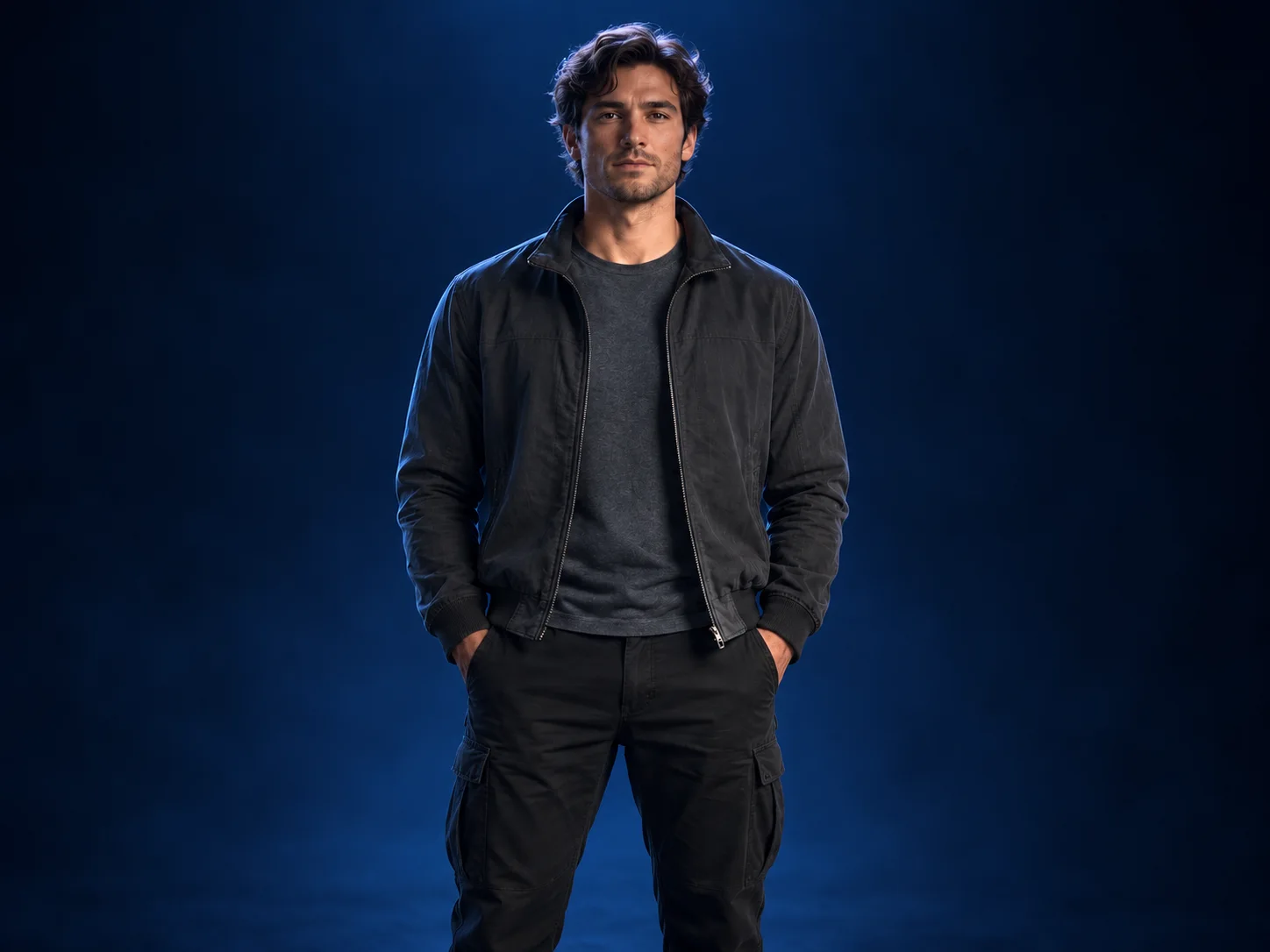
Before uploading, check the crop at the final aspect ratio. A good source gives the scan room to begin before it reaches the subject and finish after it passes. If the beam starts exactly on an edge, the model may make it look like a border or a second object.
Create the Starting Frame Before You Add Motion
If your source photo is busy, make or select a clean starting frame first. Keep the pose and composition simple. Do not ask one prompt to change the outfit, replace the background, add a scanner room, create a wireframe body, move the camera, and animate the scan all at once. Every additional transformation creates another place for the subject to drift.
An image-to-video workflow is easier to diagnose when the still already contains the subject and scene you want. The video prompt can then focus on motion: the line's direction, its speed, the local contour treatment, and the return to natural color. This split also gives you a useful checkpoint. If the still is wrong, adjust it before asking for motion.
The image-to-video workspace opens with a model selection in the URL, but model availability and controls can change. Check the live workspace before generating. The separate China AI video models guide can help you compare the site's current model families. Do not assume every model exposes the same inputs or accepts the same instructions.
Build a Prompt Around Four Controls
Treat the prompt as four small decisions rather than a pile of visual adjectives:
- Subject and starting state: name the visible subject, pose, setting, and what is already in the frame.
- Scan path: state where the beam starts, the direction it travels, and that it is one continuous pass.
- Temporary reveal: describe a restrained edge or contour glow that appears only near the beam and leaves clothing, facial details, or object geometry intact.
- Return and camera: say what returns to its original color, how long to hold the final state, and whether the camera stays locked.
This order prevents a common prompt problem: a model can understand “futuristic blue glow” but still have no idea what should move or what must remain fixed. Give it a visible subject, one motion path, one local effect, and a clear end state. Add style details only after those instructions make sense.
Keep the effect on the surface the viewer can see. “A thin cyan line traces the outside of the jacket” is more bounded than “scan the body and reveal everything.” The latter can create imagery that looks like an X-ray or a medical visualization. When you need an internal structure for a fictional robot, use an explicitly fictional mechanical subject rather than implying that a real person's body is being analyzed.
Five Copy-Ready Prompts for a Blue Light Scan AI Video
Use these prompts as starting points; results vary by model. Replace the bracketed setting or subject with details that match your image. Keep one scan direction per attempt. If the chosen model ignores a detail, simplify the prompt before adding more instructions. Each blue light scan AI video prompt below names one subject, one path, and one ending.
1. A portrait scan reveal
Use the provided image as the
single visual reference. A fully
clothed adult stands still in a
dark, uncluttered studio, facing
the camera. Keep the same face,
hair, pose, jacket, and body
proportions throughout. One thin
cyan-blue scan line travels
smoothly from the top of the frame
to the bottom. Only the clothing
edges near the line briefly glow
as a fine contour mesh; the
clothes stay opaque. The glow
fades behind the line and the
original natural colors return.
Locked camera, one continuous
shot, restrained light, no extra
beams, no labels, no medical or
biometric graphics.
2. A product contour pass
Use the supplied product photo as
the exact starting composition.
Keep the unbranded [product] in
the same position, shape,
material, and color on the
tabletop. A single narrow cyan
scan plane moves from left to
right across the object, briefly
tracing its visible outer edges
and surface seams. Let the
contours fade as the line passes
so the original product appearance
is fully visible at the end.
Static camera, clean dark
background, controlled
reflections, no floating parts, no
text, no measurements, no extra
light sources.
3. A calm pet hologram effect
Use the uploaded pet image as the
only reference. Keep the same
animal, fur pattern, markings,
size, and seated pose. A thin blue
scan line moves gently from head
to paws, revealing a delicate cyan
outline around the visible fur for
a moment. The pet stays calm and
fully recognizable, then returns
to natural color and gives one
small head turn. One continuous
shot, stable camera, soft glow, no
anatomy overlay, no extra limbs,
no text or interface.
4. A clothing silhouette reveal
Keep the same fully clothed model,
garment, hairstyle, pose, and
studio background from the
reference image. One horizontal
cyan light band travels from the
model's left side to the right. As
it crosses, a thin luminous
contour briefly follows the
outside of the garment and then
disappears, revealing the original
fabric color and texture. Preserve
the same clothing and silhouette.
Locked camera, subtle reflection,
no see-through fabric, no body
scan claims, no extra people or
beams.
5. A vehicle or environment scan
Use the supplied [vehicle or
scene] image as the fixed
composition. Preserve its original
geometry, markings, and
surroundings. One clean cyan scan
band moves steadily from
foreground to background, briefly
tracing visible edges and surface
contours without adding or
removing objects. The light fades
after one pass and the scene
settles into the same natural
colors. Wide framing, locked
camera, restrained atmosphere, no
labels, measurements, target
boxes, or multiple passes.
Follow a Repeatable Image-to-Video Workflow
Work through the same sequence each time so a failed output tells you which decision to change.
- Choose the canvas. Decide whether the result is vertical, square, or wide before cropping your image. Avoid making the model reframe midway through the clip.
- Check the still. Confirm that the subject is clear, the pose is plausible, and the background does not contain bright lines that could compete with the scan.
- Open an image-to-video model. Add the still as the visual reference and choose a model that accepts the image input you have. The Seedance 2.5 workspace is one site-owned option; available controls can vary by model.
- Describe the path once. State one starting edge and one direction. Avoid instructions such as “scan left to right and top to bottom” in the same attempt.
- Bound the reveal. Tell the model what glows and what stays the same. For a person, keep the effect on clothing or the visible outline.
- Protect the ending. Ask for the scan to fade and the original look to hold briefly. The final state should be easy to compare with the starting image.
- Review before export. Watch the entire clip, including the first and last frames. Check face, hands, outfit, shape, background, and crop. If one detail fails, change one instruction and try again.
The process is similar to other single-image motion work: decide what must stay fixed before adding animation. The one-image product ad workflow uses the same kind of source-image check, while the storyboard prompt guide helps when the idea grows into several shots.
Time the Scan for a Clear Reveal
Think in phases even when the model does not offer a timeline editor. A short opening hold lets viewers register the subject. The scan then crosses in one pass. A brief contour moment makes the effect readable, and a final hold lets the natural-color return land. The exact duration depends on the selected model and output; the sequence matters more than a fixed number of seconds.
Avoid starting the beam before the subject appears, ending it mid-frame, or stacking a second sweep before the first one finishes. Those choices can still be deliberate, but they make the basic scan reveal harder to understand. For a first attempt, use one pass, one camera setup, and one final state.
If your model supports direct motion controls, use its documented controls for timing and camera. If it only accepts a text prompt, describe the beat order in plain language. Do not write a precise frame count or duration as though every generator interprets it identically.
Diagnose the Most Common Scan Problems
When an output looks wrong, identify the first frame where it changes. Then revise only the instruction connected to that failure. Changing the source image, direction, lighting, camera, and subject motion in one retry makes it difficult to tell what helped.
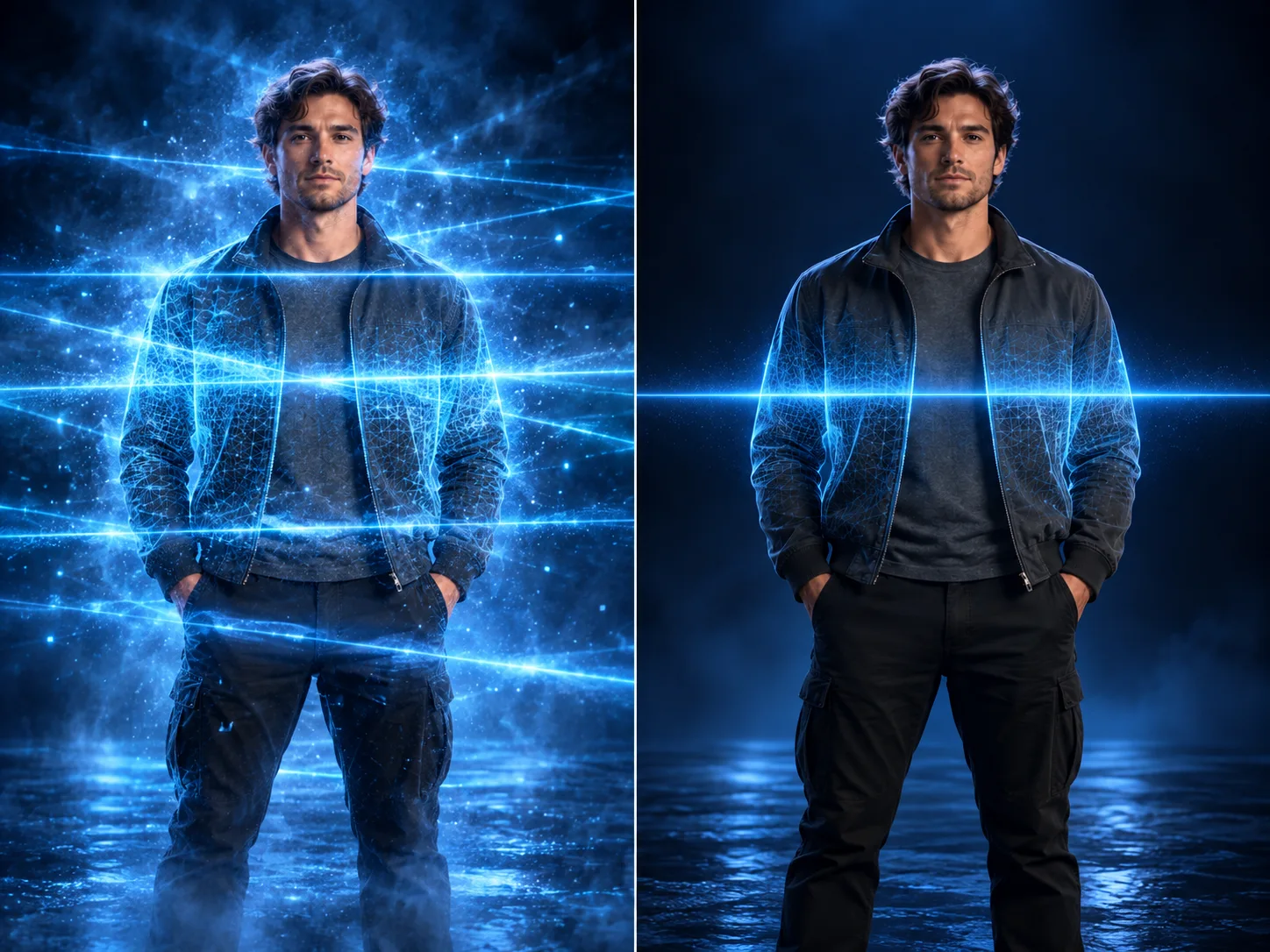
| What you see | Likely prompt or input issue | One useful revision | | --- | --- | --- | | Two or more beams cross the subject | The prompt names several scan paths or competing light sources | Ask for one thin, continuous line and remove other beams | | The face or clothing changes | The transformation is too strong or the identity constraints are vague | Reduce the glow and name the face, outfit, and pose as fixed | | The contour looks broken | The source edge is low-contrast, reflective, or hidden | Choose a clearer image or make the background simpler | | The whole frame turns blue | The color instruction applies to the full scene | Limit cyan to the narrow band and local contour around the subject | | The result never returns to normal | The ending is missing or the transformation stays active | State that the light fades and the original colors hold at the end | | The camera drifts while scanning | The prompt mixes camera movement with the scan pass | Request one locked camera before changing any camera direction |
The comparison below shows an example of a doubled contour beside a cleaner single edge. It is an editorial illustration of common generation artifacts, not a benchmark or a claim about a specific model's error rate.
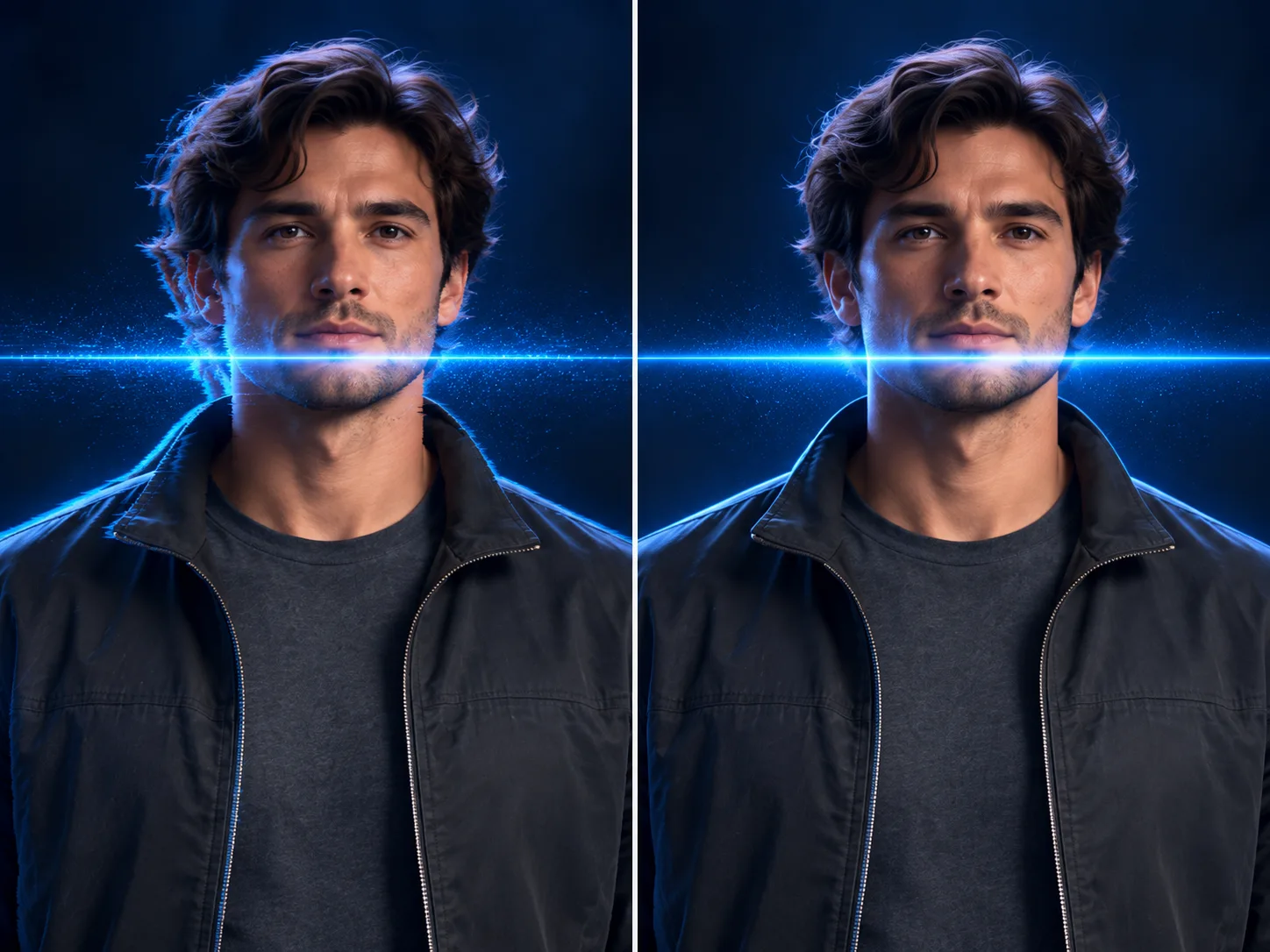
If the same issue remains after the targeted revision, go back one step and simplify the image. A busy background, tiny subject, or strong reflection may be a harder problem than the wording. No prompt can guarantee perfect identity or geometry across generated frames.
Frame for Vertical, Square, or Wide Video
Choose the destination before generation. A vertical frame works naturally for a standing person or pet. A square frame can work for a centered portrait or a compact object. A wide frame gives vehicles, products, and environments more room for the light to travel.
Keep the subject inside a central safe area. Leave space above the head and below the feet in a vertical shot, and avoid putting important details directly at the left or right edge in a horizontal shot. Social platforms can crop previews differently, so inspect the downloaded output in the framing you plan to use.
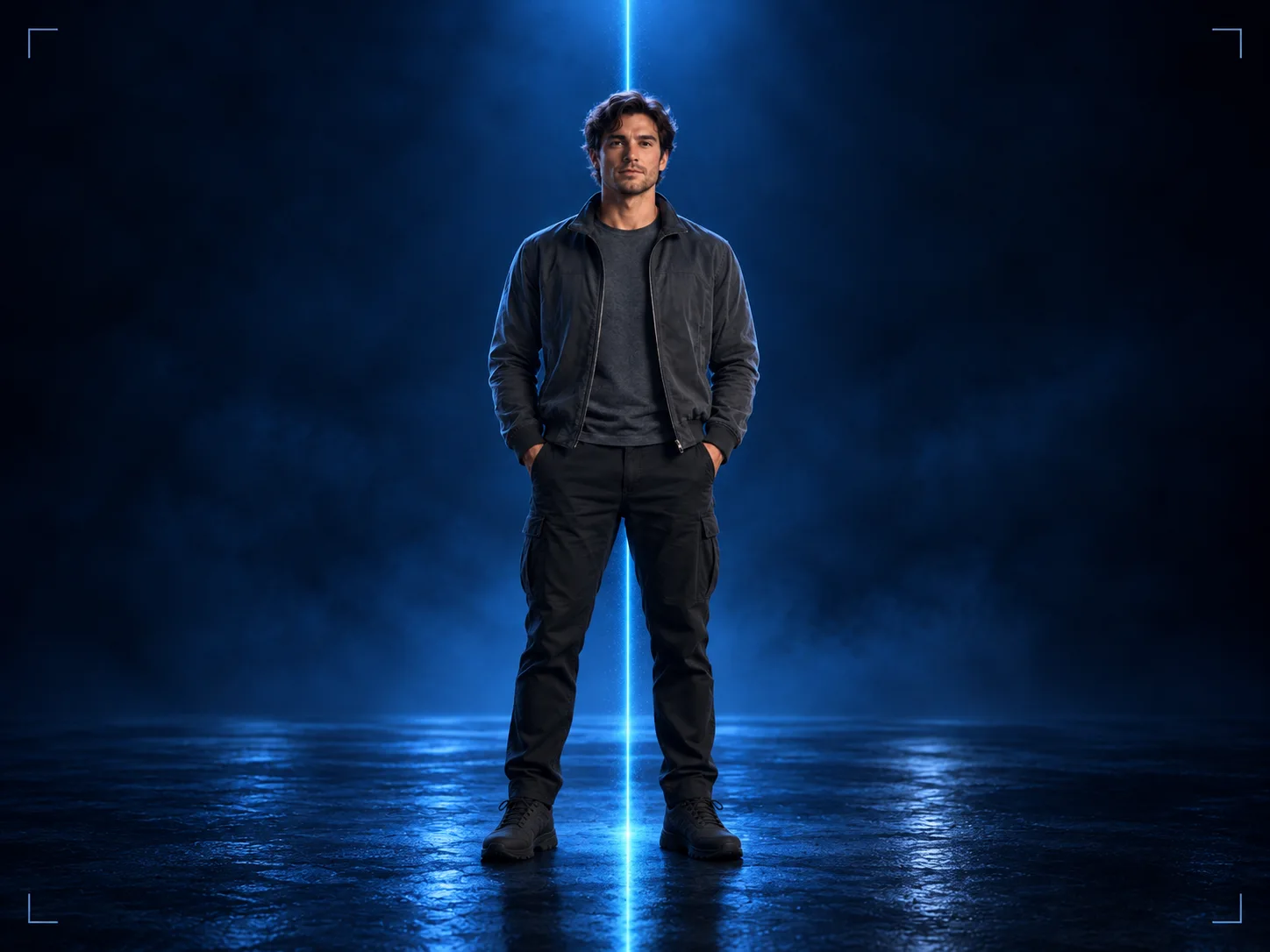
If your scene needs a separate beginning, scan reveal, and final beat, write those as distinct storyboard cards instead of forcing one prompt to invent a full edit. The AI video storyboard prompt guide gives a practical way to plan those transitions.
Keep the Blue Light Scan Clearly Fictional
The blue scan is a visual metaphor. It can suggest technology, a reveal, or a transition, but it does not make the model's output scientific. Avoid captions or overlays that imply a medical finding, body measurement, identity match, security threat, or inspection result. If the clip features a real person, do not use the effect to suggest that the person consented, was analyzed, or endorsed a product unless those statements are true and authorized.
The phrase also overlaps with real structured-light 3D scanning. A real optical measurement system uses known hardware, calibration, capture geometry, and analysis software. A text prompt that draws a blue beam is none of those things. This distinction keeps the tutorial useful to creators while reducing the chance that a decorative effect is mistaken for a real scan.
Review Permissions and the Final Export
Use a photo you own or have permission to animate. Keep the generated scene original rather than copying a recognizable creator's clip or an unlicensed reference. If you add audio, verify the rights for the destination and intended use separately; the visual prompt does not grant music rights.
Before posting, check the full clip on a phone-sized screen. Confirm that the scan remains visible after cropping, the person's face and clothes stay consistent, the final natural-color hold is present, and no accidental labels or medical-looking graphics were introduced. If the output is synthetic and could be confused for real analysis, label the effect clearly in its surrounding context.
Frequently Asked Questions
What is a blue light scan AI video?
It is a fictional image-to-video effect in which a narrow blue or cyan light sweeps across a subject, briefly reveals a glowing contour treatment, and then returns the scene to natural color. It does not measure or diagnose anything.
How do I make a blue light scan video from one image?
Start with a clear, well-separated subject image. Use an image-to-video model, describe one continuous scan path, explain what changes only as the light passes, and ask for a short return to the unchanged original appearance. Review the face, clothing, outline, and ending before exporting.
What should I include in a blue light scan prompt?
Name the subject and starting pose, specify one scan direction and pace, limit the glow to the subject's visible outline or clothing, keep the camera steady, and state how the scene returns to normal. Avoid asking for several beams or transformations at once.
What image works best for an AI scan effect?
Choose one clearly visible subject with strong edges, a simple background, even lighting, and space around the silhouette. A front-facing or three-quarter pose is easier to read than a tightly cropped, heavily occluded subject.
Is a blue light scan effect a real medical or 3D scan?
No. In this guide, blue light scan means a fictional visual effect generated from an image. It is not a medical scan, identity check, security scan, or dimensional measurement.
Why does the face or outline change during the scan?
The model is generating new frames, so it may redraw details instead of preserving them exactly. Reduce the transformation, use one steady shot, keep the source pose simple, and ask it to preserve the same face, clothing, and silhouette before changing other prompt details.
Should I make the scan video vertical or horizontal?
Choose the final aspect ratio before generating. Vertical framing suits a standing subject, while horizontal framing gives a vehicle, product, or environment more room. Keep important details inside the central safe area so the scan remains visible after platform cropping.
Try the Effect with a Controlled First Pass
Start with one clear image, one scan direction, and one simple end state. That gives you a result you can actually review. If the face, edge, or return frame fails, change just the related instruction and compare again.
Open the China Video AI image-to-video workspace to try a source image with a preselected model route, or visit the China Video AI homepage to choose another starting point. For related workflows, continue with the storyboard prompt guide and the one-image product ad tutorial.