Sample

Make Short Clips Speak

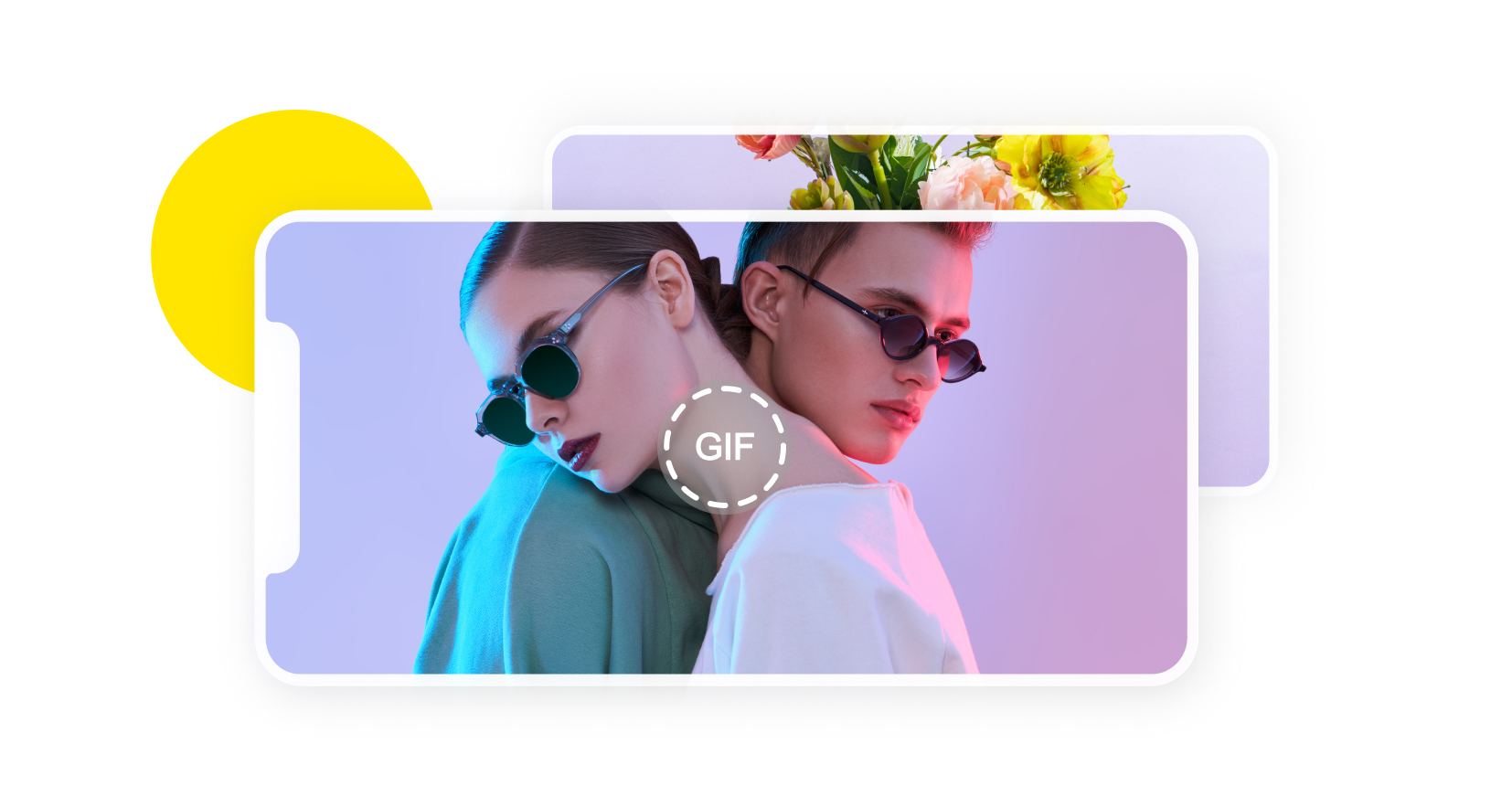
Video To GIF
Source Image*1 max · 10MB each
Aspect Ratio
Unlimited Plan

Create more premium AI videos with commercial usage and priority processing.

View Plans
Public Visibility

Allow other users to view your generated result.

Copy Protection

Hide your prompt and uploaded source files from other users.

Generate Result

My Creations →

Waiting for Results

Complete the required inputs and click Generate.

AI Video Tool

Turn Any Video into a Dynamic GIF with Video to GIF Tool

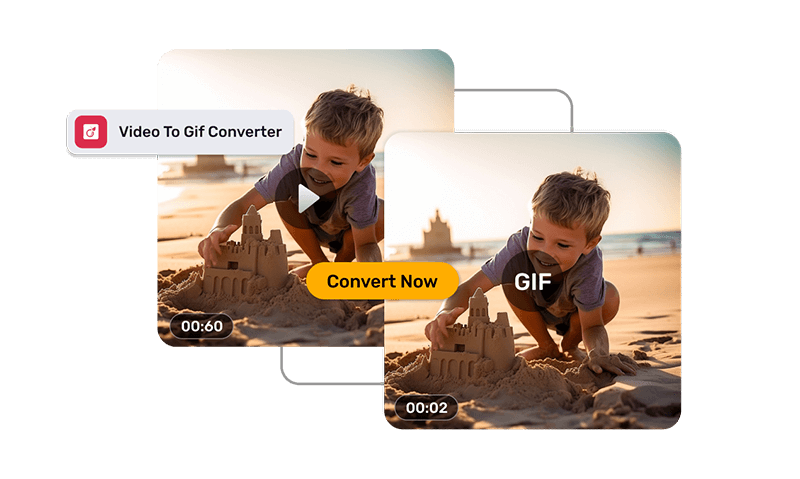
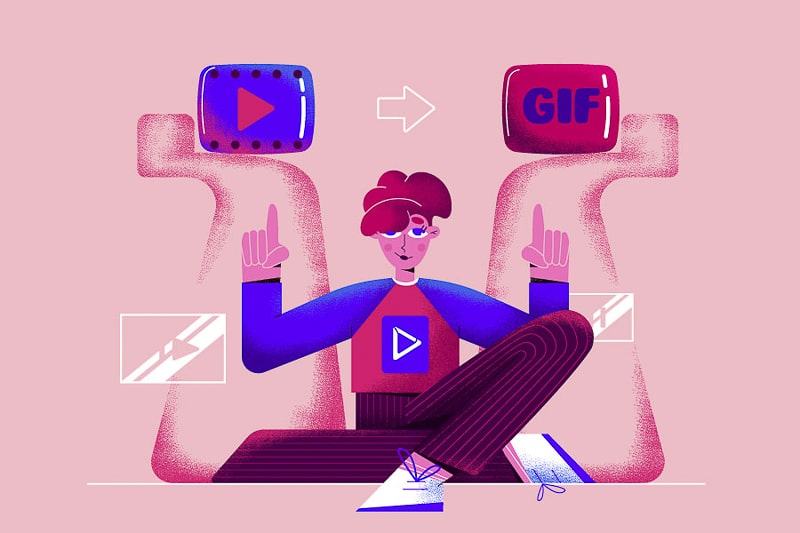
Transform your clips into looping, share-ready GIFs with just one upload. Our video to GIF tool works right in your browser—no software needed. Perfect for social posts, page animations, quick previews, and bite-sized visual moments that stand out and spread effortlessly.

Try Video To GIF Now

Easily Create High-Quality GIFs with Video to GIF Controls

This video to GIF tool combines all the essential settings for fast, high-quality GIF creation. Preserve the motion and expression of your videos while producing lightweight, web-friendly video to GIF files that load instantly across platforms.

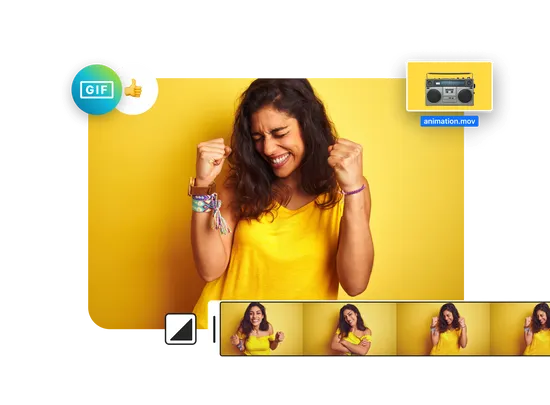
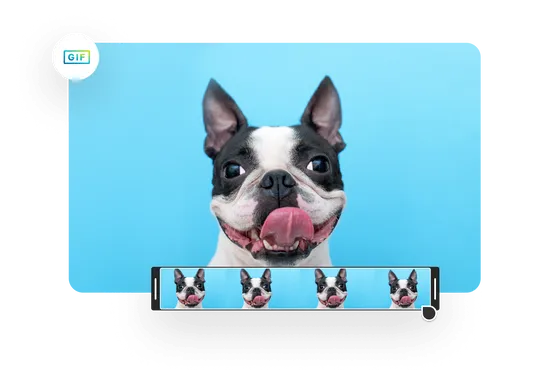
Precise Trimming & Segment Selection

Precise Trimming & Segment Selection

Customize how your GIF plays—endless looping, controlled repeat counts, mid-segment loops, or subtle pauses. These flexible playback settings give your video to GIF creations a polished rhythm that feels intentional and visually engaging.

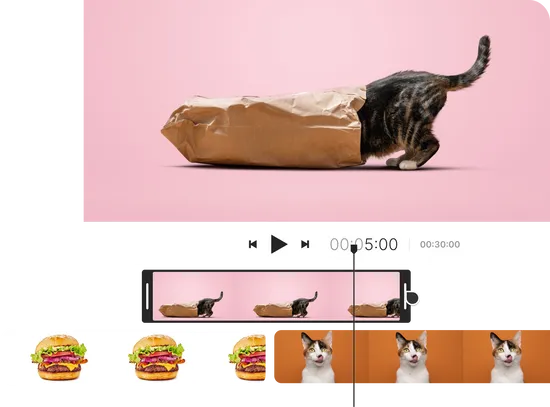
Resolution & Frame Rate Control

Resolution & Frame Rate Control

AI Fruit Video

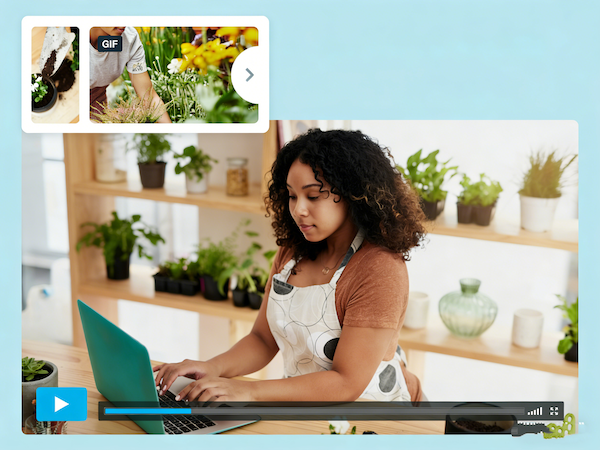
Looping & Playback Options

Looping & Playback Options

Out Of Frame

Make Short Clips Speak with Video to GIF Conversion

Beyond standard conversion, this video to GIF tool emphasizes visual storytelling and universal compatibility. Keep motion fluid, maintain file efficiency, and export platform-ready GIFs directly from the browser. Every video to GIF created is optimized for social sharing, web embedding, or presentation use.

Social-Ready Export Presets

Social-Ready Export Presets

Beyond standard conversion, this video to GIF tool emphasizes visual storytelling and universal compatibility. Keep motion fluid, maintain file efficiency, and export platform-ready GIFs directly from the browser. Every video to GIF created is optimized for social sharing, web embedding, or presentation use.

Browser-Based, No Installation Needed

Browser-Based, No Installation Needed

Beyond standard conversion, this video to GIF tool emphasizes visual storytelling and universal compatibility. Keep motion fluid, maintain file efficiency, and export platform-ready GIFs directly from the browser. Every video to GIF created is optimized for social sharing, web embedding, or presentation use.

Real-Time Preview & Instant Comparison

Real-Time Preview & Instant Comparison

Beyond standard conversion, this video to GIF tool emphasizes visual storytelling and universal compatibility. Keep motion fluid, maintain file efficiency, and export platform-ready GIFs directly from the browser. Every video to GIF created is optimized for social sharing, web embedding, or presentation use.

Why Use Video to GIF on China Video AI

China Video AI Video to GIF tool is built for creators who value speed, quality, and simplicity. Effortlessly convert videos into engaging, shareable GIFs while maximizing the impact of your Video to GIF content across social media, presentations, and websites.

Instant Quality with Smart Compression

Instant Quality with Smart Compression

Our Video to GIF engine balances file size and visual fidelity. Unlike other tools, China Video AI preserves motion clarity, vibrant colors, and smooth playback, delivering professional-quality GIFs without slowing load times.

All-in-One Online Platform

All-in-One Online Platform

No downloads or extra apps required. China Video AI provides a seamless browser-based workflow—upload, trim, adjust, and export your Video to GIF creations in one place, reducing friction and speeding up content production.

Edit Your Video Before Uploading

Edit Your Video Before Uploading

Refine your video before generating your Video to GIF output. Crop clips, add titles, or captions to optimize every frame. Preparing your video ahead of time ensures a polished, precise, and expressive GIF.

Versatile Use Across Platforms

Versatile Use Across Platforms

Every Video to GIF exported from China Video AI is platform-ready. From Instagram loops to website animations, your GIFs adapt seamlessly, eliminating the need for repeated conversions and ensuring professional results everywhere.

Optimize Your Creations with Video to GIF Best Practices

Practical, creator-friendly tips that help you maximize clarity, smoothness, and visual impact within a lightweight file size. Apply these six techniques to get the best results from any video to GIF conversion.

Avatar

Trim Before Conversion

Keep only 1–6 seconds of essential action. Short clips reduce file size and create more engaging loops. For high-impact Video to GIF results, remove slow starts, long transitions, and unnecessary pauses.

Avatar

Adjust Frame Rate While Preserving Key Moments

Lowering FPS from 30 to 15 shrinks file size while keeping important action sharp. This ensures your Video to GIF flows naturally without wasting data on minor motion.

Avatar

Scale Resolution for Sharing

Most scenes look crisp at 480–720px width. Close-ups work well smaller, while detailed or fast-motion shots may need slightly higher resolution. Tailor your Video to GIF output for clarity and file efficiency.

Avatar

Apply Short Loops and Subtle Fades

0.2–0.5s fade-in/out creates seamless, pleasing loops. Perfect for product shots, reactions, or atmospheric clips, helping your Video to GIF feel polished without increasing file size.

Avatar

Remove Visual Clutter

Crop dead space, borders, or static edges to focus attention on the main action. Cleaner frames compress better and improve the overall quality of your Video to GIF output.

Avatar

Preview and Test Settings

Try multiple resolution and FPS combinations before exporting. Comparing options ensures your Video to GIF looks optimal across social platforms, browsers, and messaging apps.

Get Inspired by Creative Examples of Video to GIF Outputs

Discover real-world cases that show how Video to GIF conversions can transform short videos into expressive, share-ready visuals. From social loops to product highlights and tutorial clips, these examples illustrate the versatility and impact of a Video to GIF workflow.

Social Loops

Social Loops

Designed for fast-moving feeds, these looping GIFs deliver instant visual rhythm. Strong motion cues and tight pacing make each loop feel intentional, helping content stand out and draw repeated attention.

Product Micro-Demos

Product Micro-Demos

A 3–5 second GIF can highlight key product interactions or moments of delight. Video to GIF outputs make features instantly understandable and enhance landing pages, ads, or UI mockups with clear, engaging visuals.

How-To Clip Excerpts

How-To Clip Excerpts

Step-based visuals become more approachable when shown as a sequence of short GIFs. These excerpts help viewers follow actions quickly, making them ideal for documentation, onboarding flows, and quick reference guides.

Web Motion Elements

Web Motion Elements

Lightweight GIFs created through Video to GIF conversion can elevate web pages or hero sections. Subtle motion adds visual interest, reinforces messaging, and enhances user experience without overwhelming the layout.

Follow Three Simple Steps to Convert Video to GIF

A clear, intuitive process designed to help you move from video to GIF with confidence. Upload, adjust, and export—each step is streamlined so you can create your first GIF in just a few minutes.

01

Upload or Drag In Your Video

Drag your video (MP4, MOV, and more) into the workspace or select it from your device to begin. This first step brings your content smoothly into the video to GIF workflow without extra setup, keeping the creative process light, intuitive, and ready to move forward.

02

Trim Your Clip, Set Resolution and Frame Rate

Use sliders or input fields to pinpoint the exact moment you want to feature. Adjusting resolution and frame rate at this stage ensures your video to GIF result aligns with the viewing environment you’re targeting, keeping the process clear and predictable from the start.

03

Preview and Export Your GIF

Before exporting, preview your loop to confirm timing, pacing, and overall flow. Once everything feels right, export your final video to GIF file and download or share it instantly—streamlining your publishing process and reducing unnecessary trial and error.

Frequently Asked Questions about video to GIF

Get clear, practical guidance on the most common questions users have when converting video to GIF. These answers help you work confidently and optimize your video to GIF workflow.

What is video to GIF?

Absolutely. Reducing resolution, lowering frame rate, or trimming the clip can dramatically shrink the final file size. Many video to GIF converters also include built-in optimization options for a more lightweight output.

Can I convert a video to GIF directly in my browser?

Common formats like MP4, MOV, and WEBM are widely supported. For exact format compatibility, refer to the specifications of your chosen video to GIF tool.

What if my GIF file is too large? Are there ways to optimize it?

Yes. Many video to GIF tools offer social-ready export presets or instant share links, making it easy to post your GIF to platforms like Instagram, X, or Facebook without additional editing.

Which video formats can be converted to GIF?

This usually occurs when balancing file size with visual quality. Adjusting resolution, frame rate, or color depth can restore clarity. Use the real-time preview in your video to GIF tool to compare settings and ensure the final video to GIF output looks as intended.

Can I share my exported GIF directly on social platforms?

Yes. Some editing tools on the China Video AI platform offer basic features such as adding titles, captions, arrows, or highlight markers. These options make it easy to enhance your video to GIF output for social posts, tutorials, or quick visual explanations.

What should I do if the GIF looks less smooth or the colors seem reduced?

Depends on source video copyright; video to GIF outputs don’t add extra restrictions.

Can I add text or simple annotations before exporting my GIF?

Yes. Many video to GIF converters include limits on resolution, file size, or clip duration. These restrictions are usually displayed during upload or editing, helping you adjust settings to optimize your video to GIF output.

Can the converted GIF be used for commercial purposes?

Try increasing resolution, raising the frame rate, or trimming to a smaller area of the scene. Visual noise often appears when compression is high or the original video quality is low. Adjusting these settings ensures cleaner video to GIF exports.

Start Your Video to GIF Journey and Bring Videos to Life Today

Every second counts. Turn your videos into eye-catching GIFs today and make your social posts, presentations, and web content stand out. Start your video to GIF journey now and see your ideas in motion immediately.

Start Your Video to GIF Journey and Bring Videos to Life Today